
Documentation navigation
Government Context MCP
Connect ChatGPT
Add Government Context as a custom MCP server in the ChatGPT desktop app or on the web.
Before you connect
Create a free Government Context account first. Authentication uses a browser OAuth flow: do not create, copy, or paste an API key.
Connect
Custom MCP connectors are a paid ChatGPT plan feature (Plus, Pro, Business, Enterprise, or Edu), not part of the free ChatGPT tier. Your Government Context account can still be free. ChatGPT stores custom MCP servers per application: if you use both the desktop app and the web, add Government Context in each. There is no way to add it in the ChatGPT mobile app.
In the ChatGPT desktop app
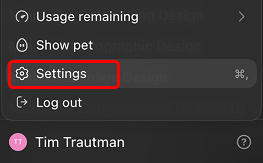
- Open your account menu at the bottom of the sidebar and click Settings.
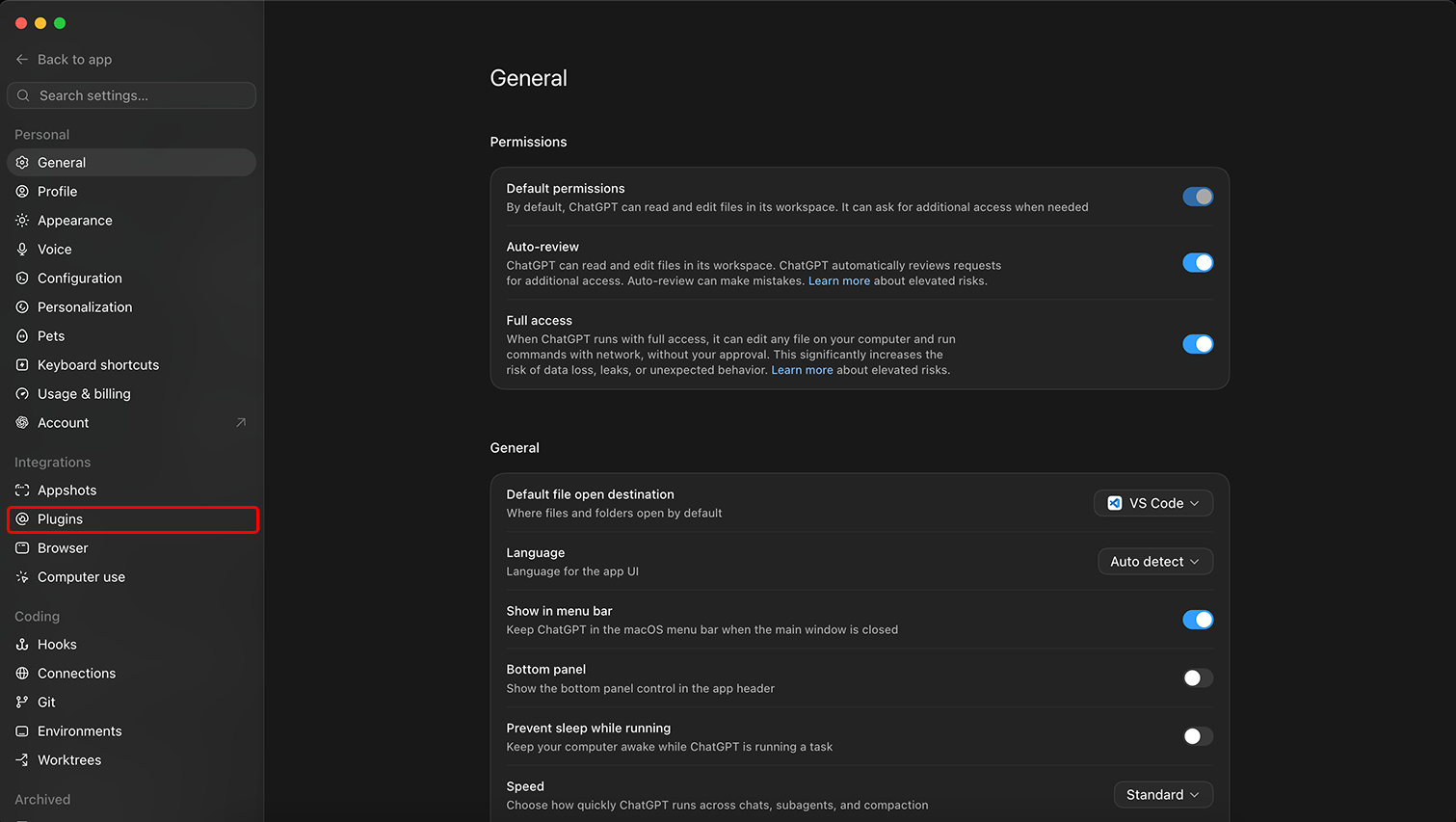
- In the Settings sidebar, find the Integrations group and click Plugins.
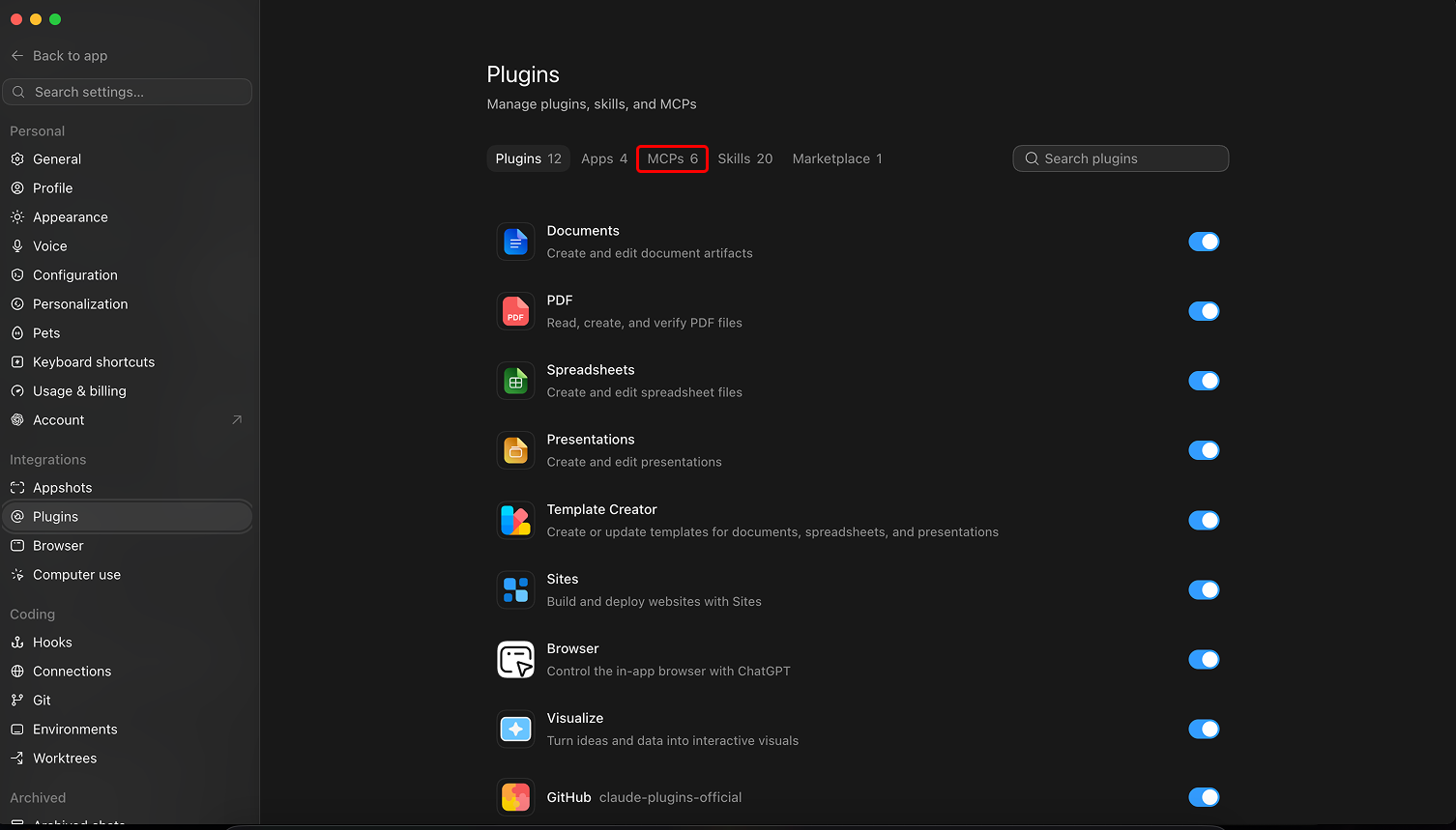
- On the Plugins screen, open the MCPs tab.
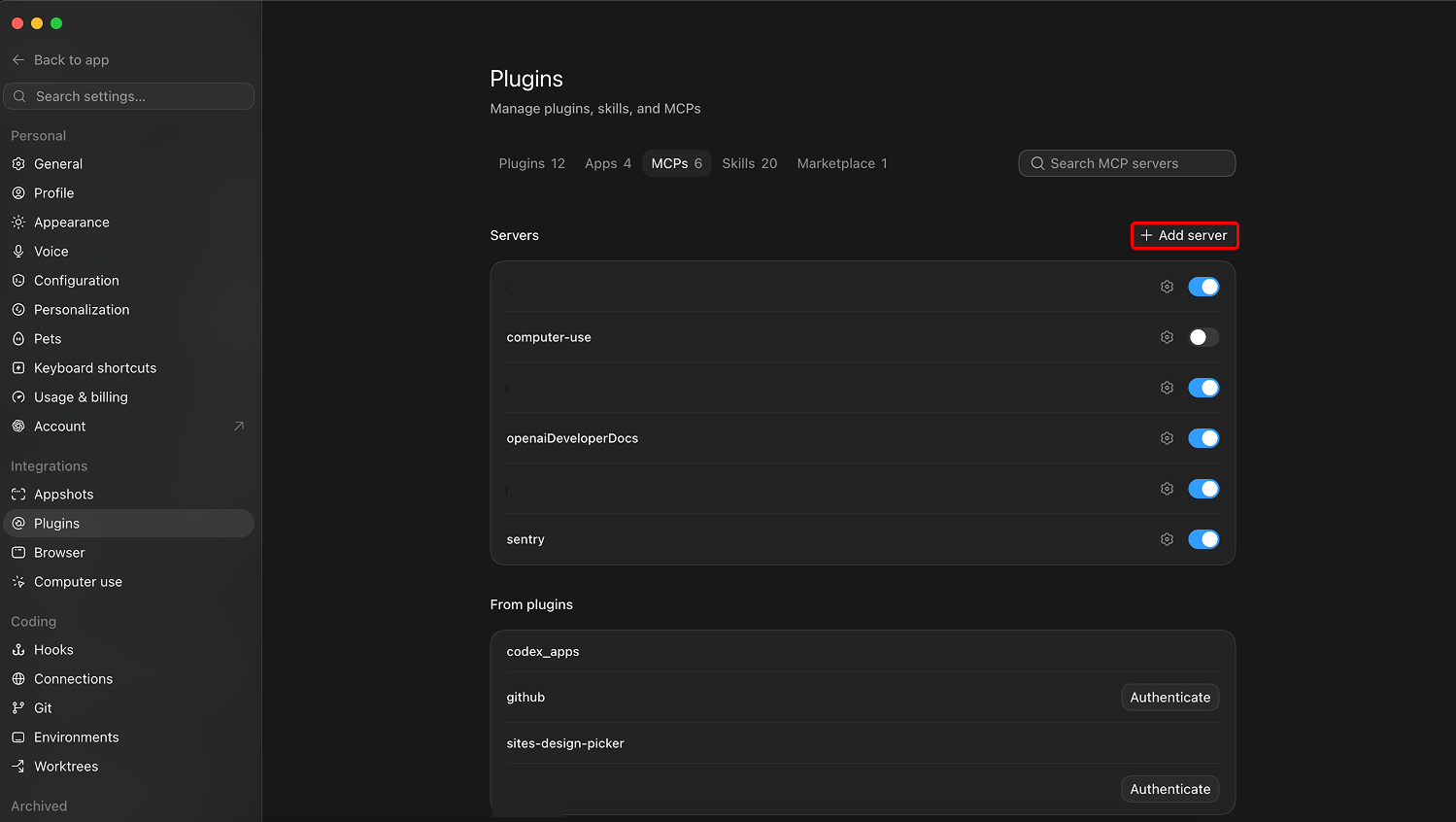
- Under the Servers heading, click Add server.
- Fill in the “Connect to a custom MCP” form and click Save: name it
Government Context, set the type to Streamable HTTP (not STDIO), and usehttps://mcp.governmentcontext.comas the URL. Leave the bearer token and header fields empty.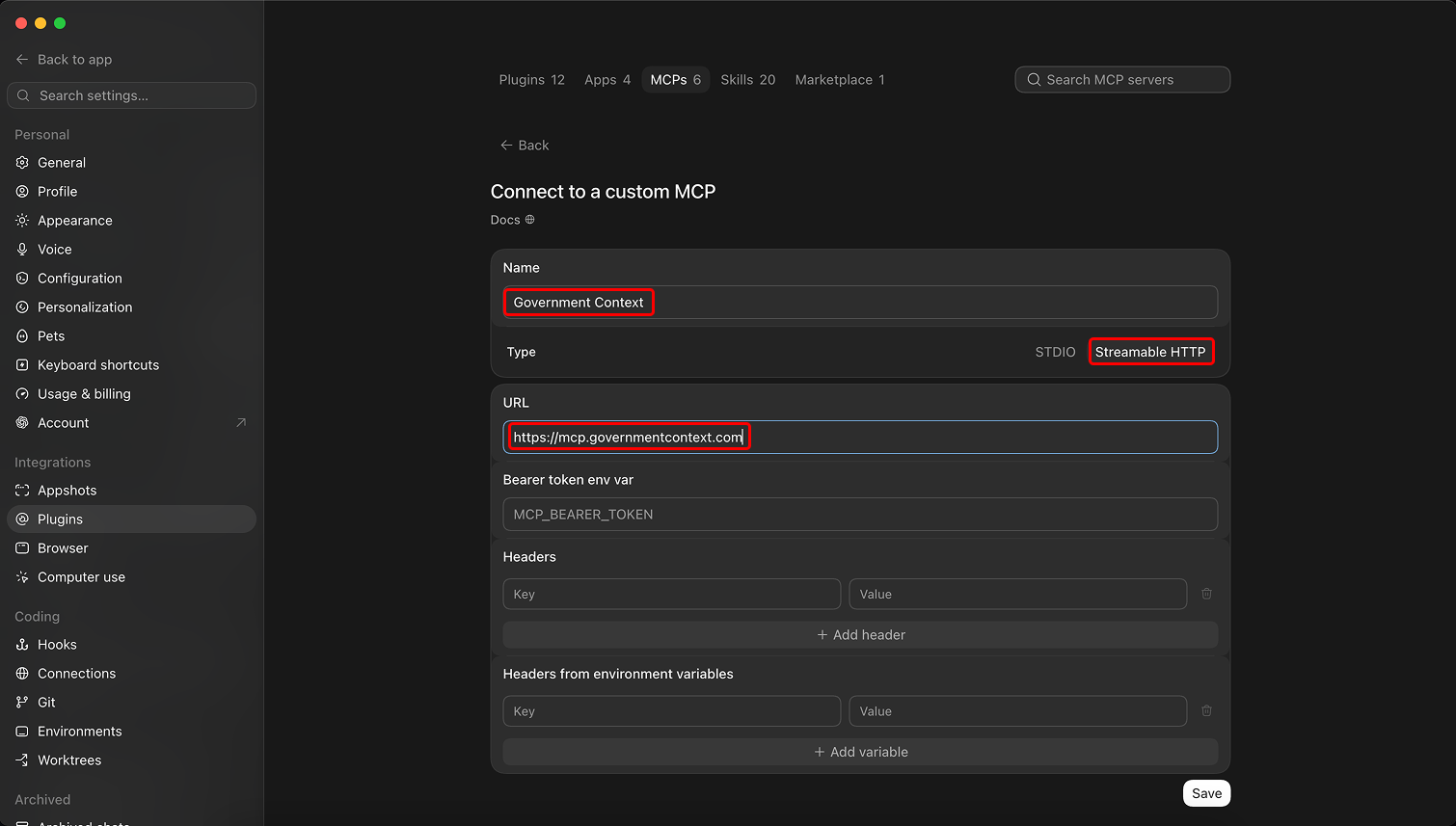
- The server appears in your list as
government_context. Click Authenticate to sign in and approve access.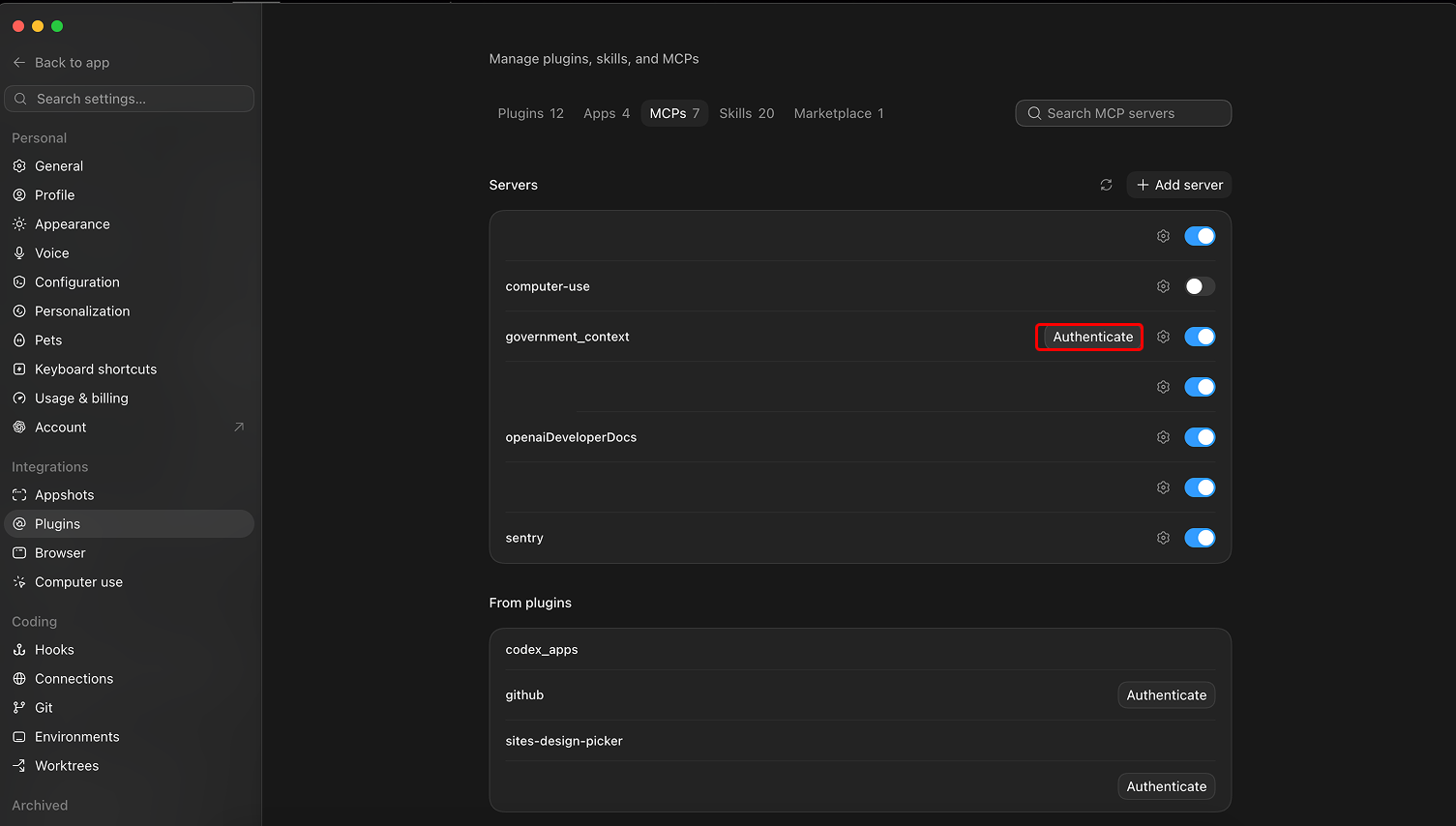
On the web at chatgpt.com
The web keeps custom MCP connectors behind developer mode, so you turn that on first. On Business, Enterprise, and Edu workspaces, an admin may need to allow custom connectors before you can.
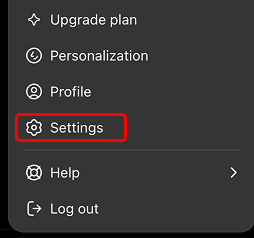
- Open your account menu and click Settings.
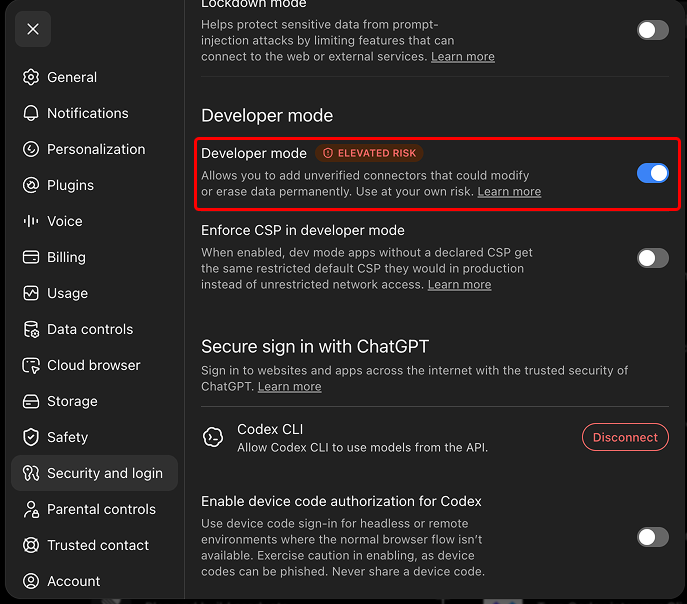
- In the Settings sidebar, click Security and login.
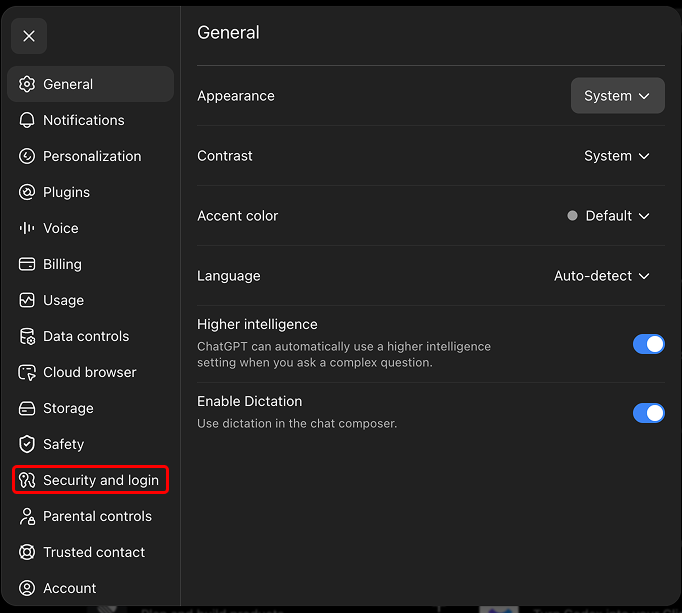
- Find Developer mode and turn it on. ChatGPT flags this as elevated risk because it lets you add connectors it has not reviewed, which is what you want here.
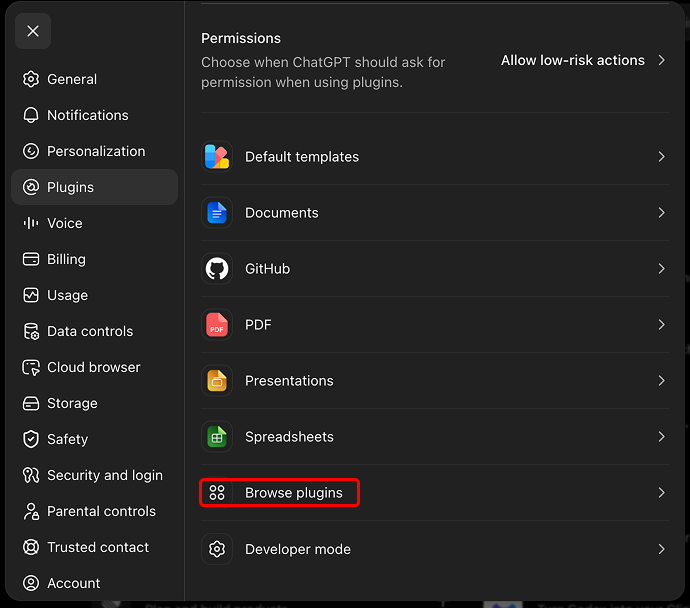
- Open the Plugins section, then click Browse plugins.
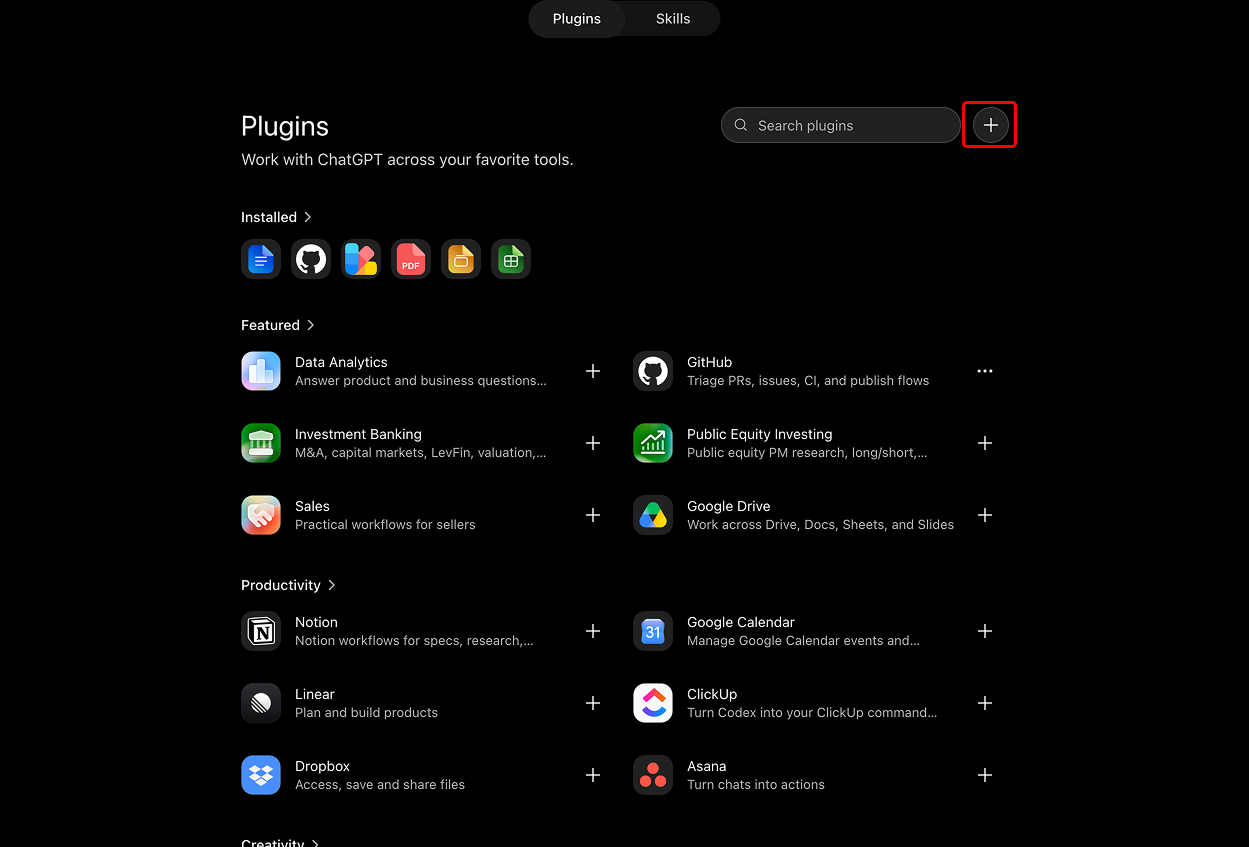
- Click the + button next to the search box.
- Fill in the New Plugin form and click Create: name it
Government Context, choose Server URL for the connection, pastehttps://mcp.governmentcontext.com, select OAuth for authentication, and check the acknowledgment about custom MCP servers.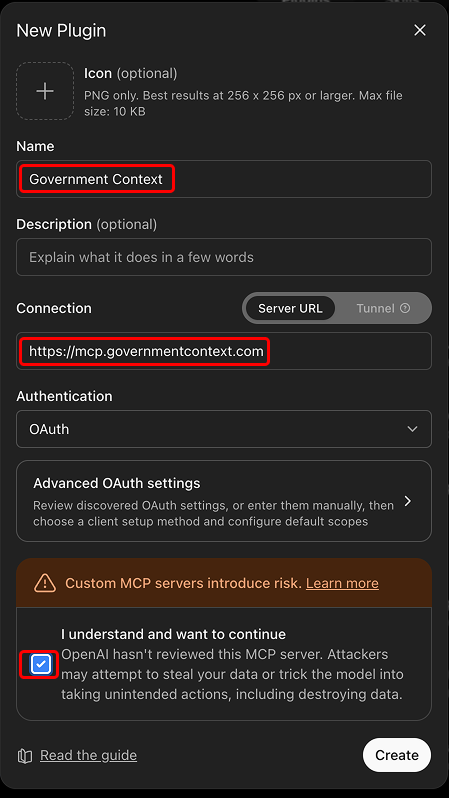
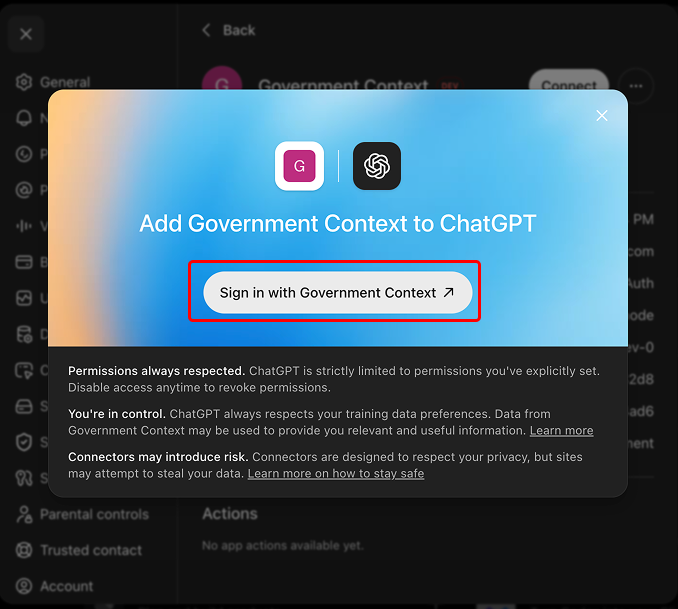
- On the next screen, click Sign in with Government Context. Create the free account first if you do not have one yet.
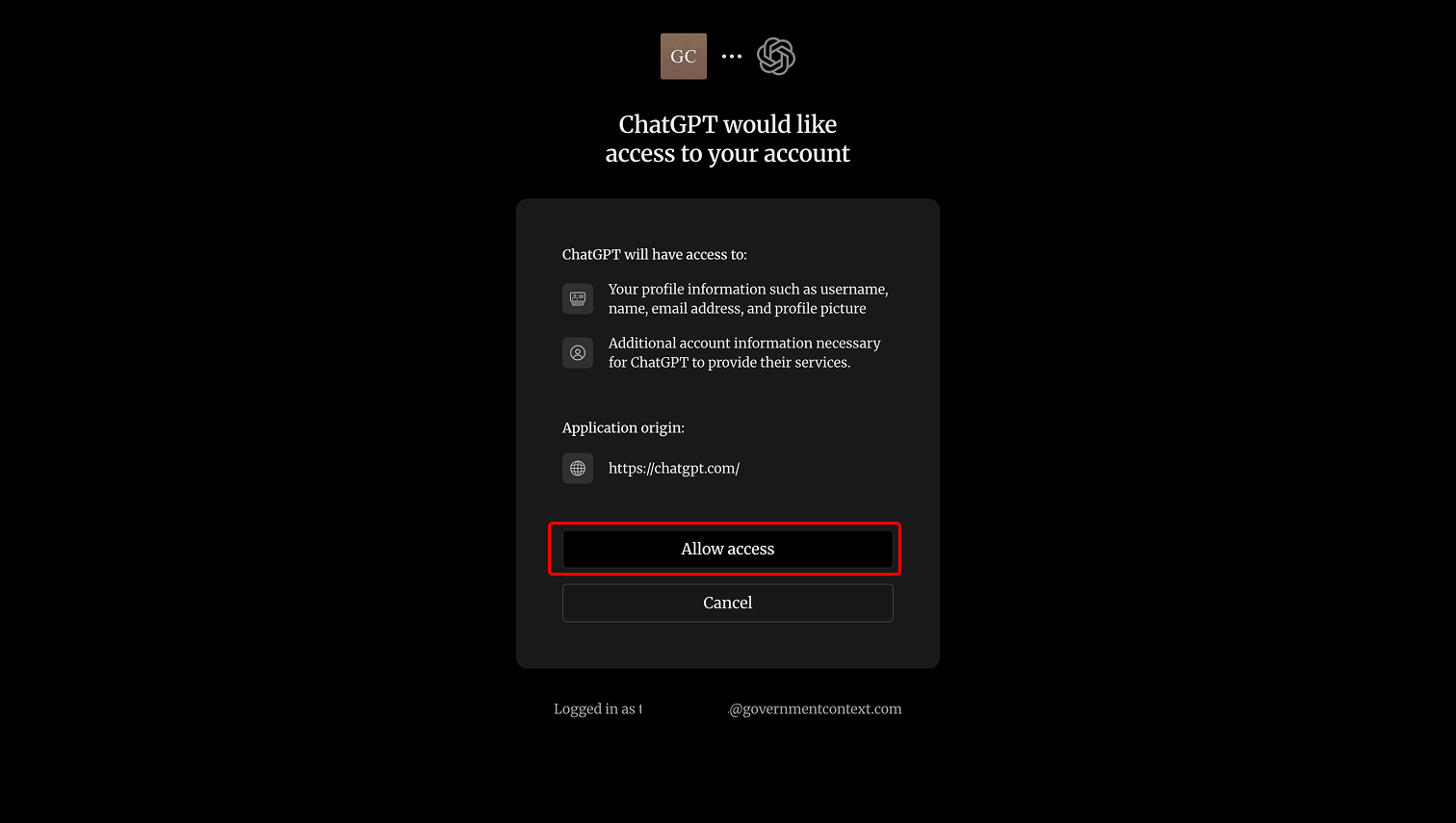
- Sign in, then click Allow access. This runs over OAuth, so ChatGPT receives a scoped token and you never copy or paste one.
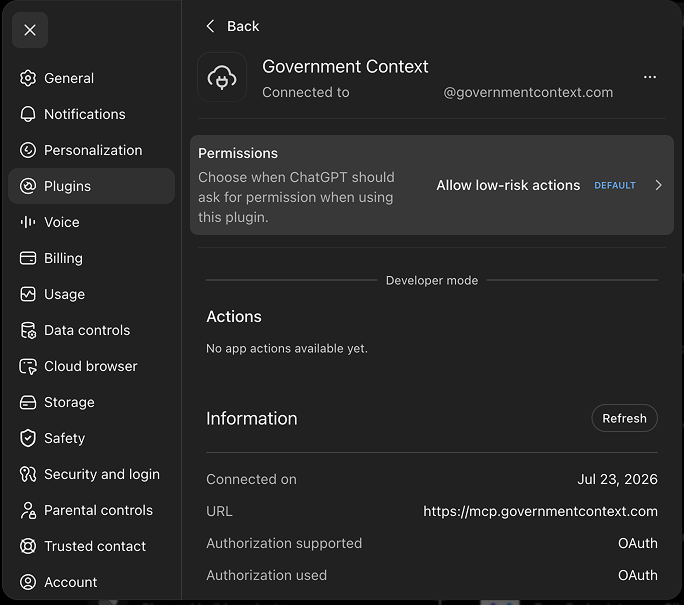
- The connector now shows as connected, with OAuth listed for authorization.
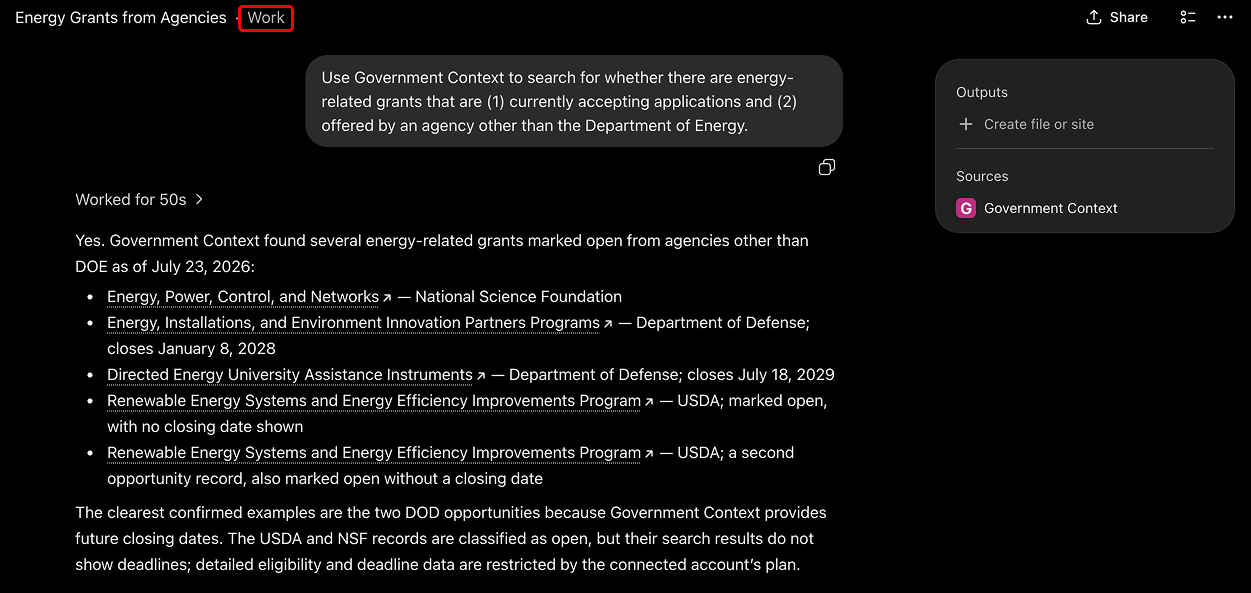
- Start a new chat in Work mode and ask it something. The connector is only available in Work mode, not in a regular chat.
Full walkthrough with every screen: How to install Government Context.
Your first query
Start with a research question that makes the server compose search, detail, and comment tools:
Which trade associations oppose the FMCSA broker-transparency rule, and what are their main arguments?
If free-tier data is withheld, the tool result explains what is missing and which paid capability would add it. The agent should relay that note instead of retrying the same request.
Troubleshooting
- Use the bare hostname exactly as shown; do not append
/mcp. - If authorization restarts, reconnect and confirm the intended organization.
- If a tool is missing, confirm it is enabled in the client's connector controls.
- Rate-limit responses include a retry time; wait rather than retrying immediately.